
Staff email display options
A single site-wide setting that controls whether the staff directory shows email addresses, hides them behind a click, or replaces them with a contact form. Found in the Manage Members menu on the staff page.
Staff Contact Options
The staff directory at /staff has three contact options, set once for the whole site:
- No Email or Contact Form — the email is not shown and visitors have no way to contact the person through the website.
- Show Email — emails are obfuscated for logged-out visitors so spam bots can't harvest them. Visitors see a "[Click to view email]" button; clicking it reveals the address. Logged-in users see it by default.
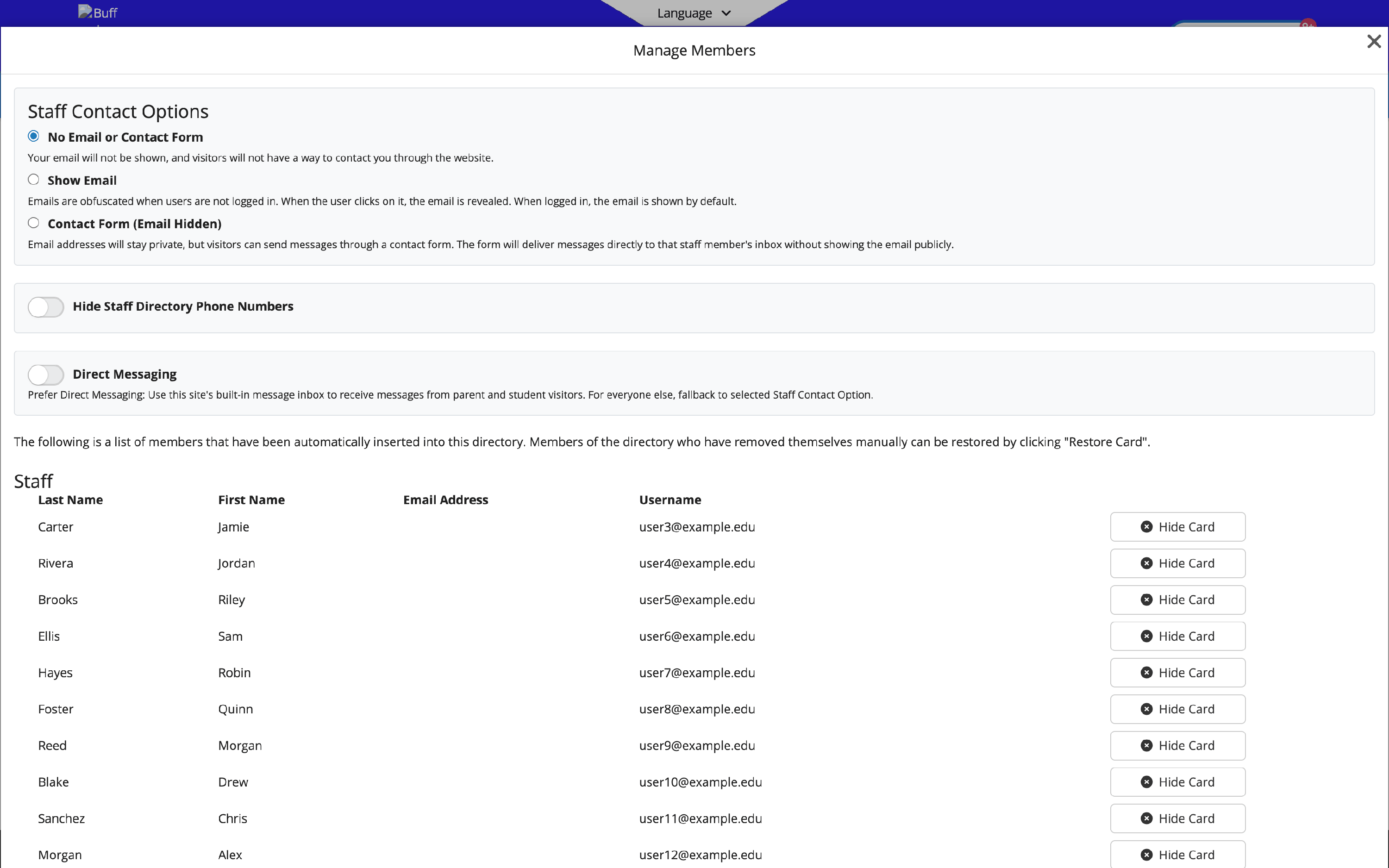 - Contact Form (Email Hidden) — the address stays private; visitors send a message through a form that delivers to the staff member's inbox without showing the email publicly.
This setting is site-wide. It is not configured per person — you cannot show one teacher's email and hide another's. All staff cards follow the chosen option.
Changing the setting
- Open the staff directory page (usually
/staff). - Click the gear icon in the admin toolbar to open the Manage Members menu.
- At the top, under Staff Contact Options, pick one of the three options.
- The change saves immediately and applies to every staff card. A confirmation message ("Email display setting updated successfully!") appears.
FAQ
- "How do I hide email addresses while still allowing contact?" Choose Contact Form (Email Hidden). Visitors get a form that routes to the staff member's inbox, and the email address never appears on the page.
- "How do I reduce spam sent to addresses on the staff page?" Switch to Contact Form (Email Hidden) to hide addresses entirely, or Show Email to keep them visible but obfuscated from bots until a visitor clicks to reveal.
- "Why does an email look scrambled or require a click to see?" This is the Show Email option working as intended. Addresses are obfuscated for logged-out visitors so spam bots can't harvest them; a click reveals the real address. Logged-in users see it without clicking.
- "Can I show some staff emails but hide others?" No. The setting applies to the whole staff directory, and all cards follow the chosen option.
- "A contact-form message shows it was sent from Atlanta, but the sender isn't there." The location is estimated from the sender's IP address, which is unreliable and often reflects a VPN or proxy rather than the person's actual location.
- "Where did the 'Display Email Addresses on Staff Listing Pages' setting go?" It moved out of My Account → Configuration → Appearance into the gear Manage Members menu on the staff page. It is the same control in a new location. (On some sites it may still appear under Configuration → Appearance.)
Related articles
Last updated: May 2026.