
Spotlight terrace
The Spotlight terrace is a terrace containing up to eight tiles. Each tile holds a square image, a title, an optional message, and an optional button.
A page contains at most one Spotlight terrace.

Layout
Each tile is a 290-pixel square image with a title band beneath it. The tile has one size.
- Desktop: four tiles per row, wrapping to a second row. Narrower desktop windows and tablets fit three or two per row.
- Mobile: one tile at a time, in a stack. Swipe to move through them. The stack does not loop.

On mobile, Expand All below the stack lays every tile out in a single column. Collapse All returns to the stack.
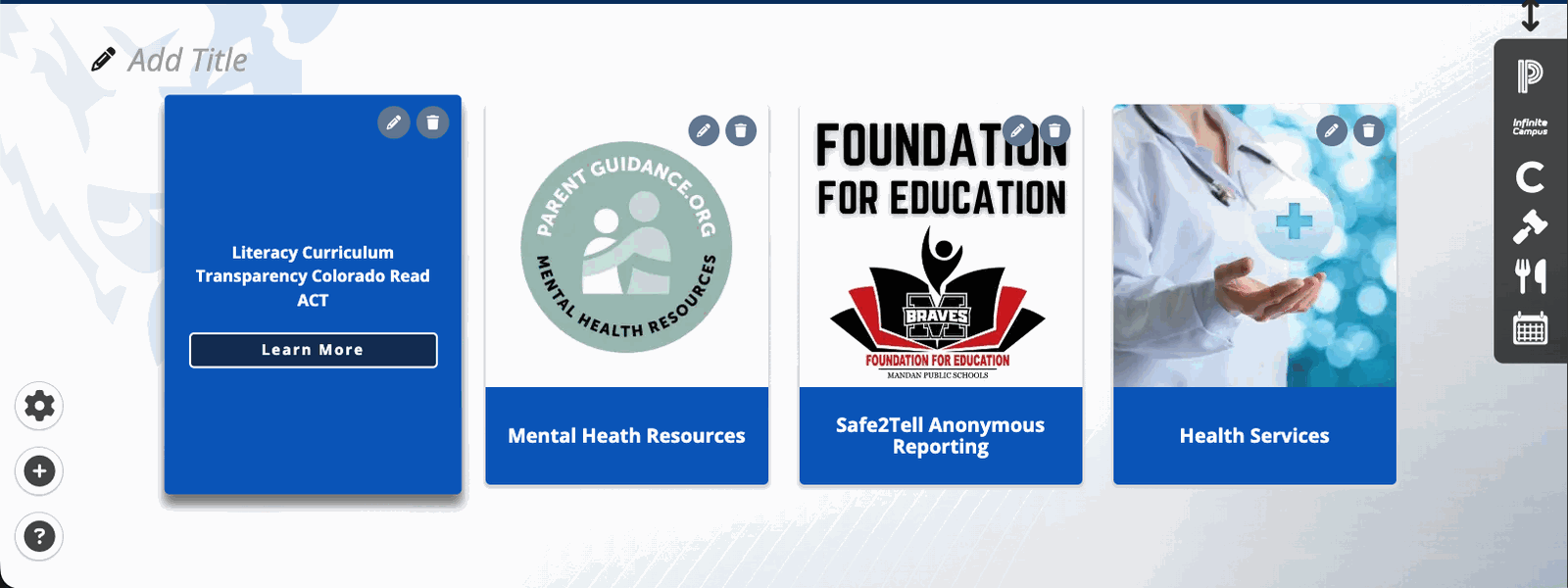
To display a tile's message and button, hover over the tile on desktop or tap it on mobile. Keyboard users focus the tile and press Enter or Space. On mobile the first tap on a tile behind the current one brings it to the front; the next tap opens it.
Turning the terrace on and off
- Click the + (Add content) button in the admin menu.
- Click Terrace Menu.
- Toggle Spotlight on.
Toggling the terrace off hides it and retains its tiles. Toggling it on again restores them. The pencil menu on the terrace contains a second control for this, Turn Off Spotlight Terrace.
Heading
The heading is edited in place. Click it, type, and press Enter to save or Escape to cancel.
A terrace whose heading has never been set displays the word Spotlight. A heading saved as an empty field is not displayed to visitors.
Adding a tile
Click the pencil on the terrace and click Add Tile. The Add a Spotlight Tile window opens. The same window, headed Edit a Spotlight Tile, opens from the pencil on an individual tile.
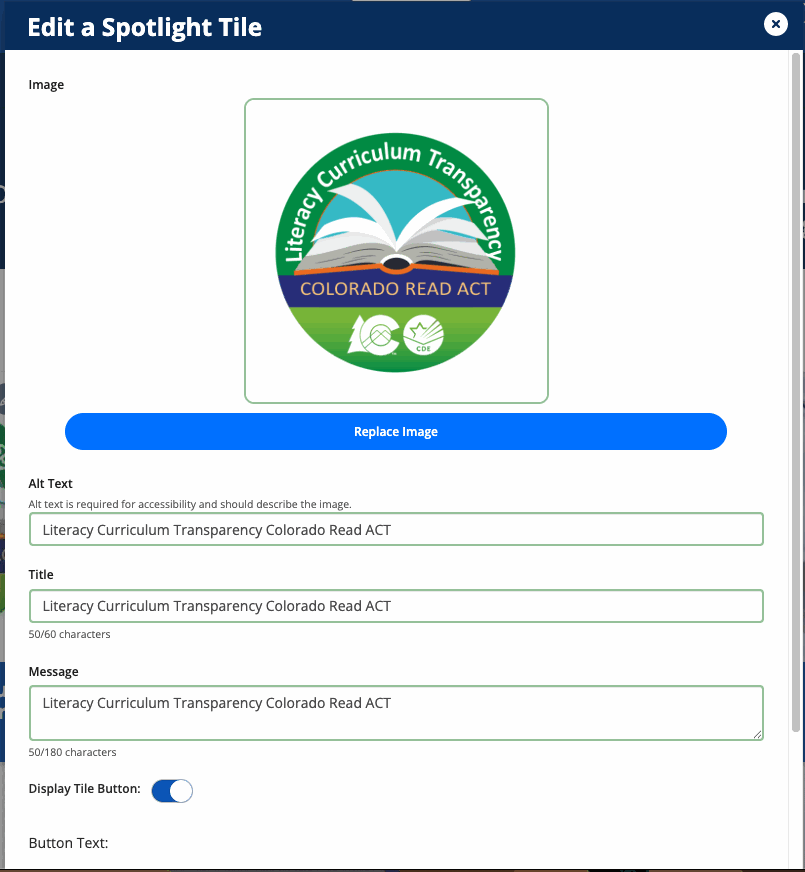
Fields, in order:
| Field | Behavior |
|---|---|
| Image | Upload Image opens a file picker, then the crop window. Replace Image repeats the process |
| Alt Text | Required. Appears once an image is set. The editor states: Alt text is required for accessibility and should describe the image. |
| Title | Required. The field accepts 60 characters. A counter reads n/60 characters |
| Message | The field accepts 180 characters. A counter reads n/180 characters |
| Display Tile Button | Adds a button to the tile |
| Button Text | The field accepts 30 characters. A counter reads n/30 |
| URL | Internal searches the pages of your site. External takes a full web address |
Save Changes saves the tile. Cancel discards it. Pressing Escape or clicking outside the window also discards it, without a confirmation.
Save Changes is disabled until the tile has an image, alt text, a title, and either a message or a complete button. A tile with a button needs both button text and a link.
Cropping the image
The crop window enforces a 1:1 square. The crop area cannot be resized; the image is moved and zoomed behind it. The window states: Upload and crop an image to be used as the Spotlight Terrace's background image. 290px x 290px is the recommended size and 2MB is the file size limit.
Change Image returns to the file picker. Save uploads the cropped image.
Every crop is saved as a 290-by-290 pixel PNG on a white background. Transparency in the original file is replaced by white. Because the crop produces the uploaded file, the format and the size of the file you select do not affect the upload.
Reordering tiles
Click the pencil on the terrace and click Toggle Reordering. A banner reads Reordering on — drag tiles to rearrange. Tiles are then moved by dragging, or by focusing a tile and pressing the left, right, up, or down arrow key.
Toggle Reordering appears only when the terrace holds more than one tile, and only on desktop. It is not available on touch devices.
Clicking Toggle Reordering again ends reordering. Reordering also ends if the number of tiles drops to one.
Editing and deleting a tile
Each tile carries a pencil and a trash button in its top corner while you are logged in as an editor. The pencil opens Edit a Spotlight Tile. The trash opens a dialog asking Do you want to delete the [title] tile? with Cancel and Yes.
Text and links
The title and the message are plain text. Markup typed into either field is displayed as written. The message cannot contain a link; the tile's only link is its button.
Tile titles and messages are indexed by site search. Alt text and button text are not.
Constraints
- Eight tiles per terrace. The Add Tile control remains available at eight tiles; clicking it displays the message You have reached the maximum number of tiles allowed in a Spotlight Terrace. under the title Max Tiles Reached.
- Pages built before the eight-tile limit retain the tiles they already hold, and those tiles are displayed. No further tiles can be added to them.
- One Spotlight terrace per page.
- The tile has one size. There is no size setting.
- The terrace can be moved with Move Up and Move Down. The Hero Banner and the Map cannot be moved, so the Spotlight terrace cannot be placed above the Hero Banner or below the Map.
FAQ
- "Why can I not add a ninth tile?" A Spotlight terrace holds eight. Content beyond eight tiles goes on a subpage, which a tile's button can link to.
- "Why does another of our pages have twelve tiles?" It was built before the limit was applied. Those tiles remain and are displayed, and no further tiles can be added to that terrace.
- "Can a page have two Spotlight terraces?" No. A page holds one terrace of each type. A second group of tiles goes on a subpage.
- "Can a Spotlight terrace be copied to another page?" No. Tiles are added to each terrace individually.
- "Can the image be cropped to a shape other than a square?" No. The crop is fixed at 1:1. An image whose content does not fit a square is cropped. The Statement and About terraces take wide images.
- "Why is the message not showing on the tile?" The message is displayed when the tile is opened: hover on desktop, tap on mobile, or Enter or Space when the tile is focused.
- "Can the tiles be made smaller?" No. The tile has one size.
Last updated: July 2026.