
Links terrace
The Links terrace is a terrace containing groups of links in a horizontal slider. Each group is a top-level link or a folder of links.
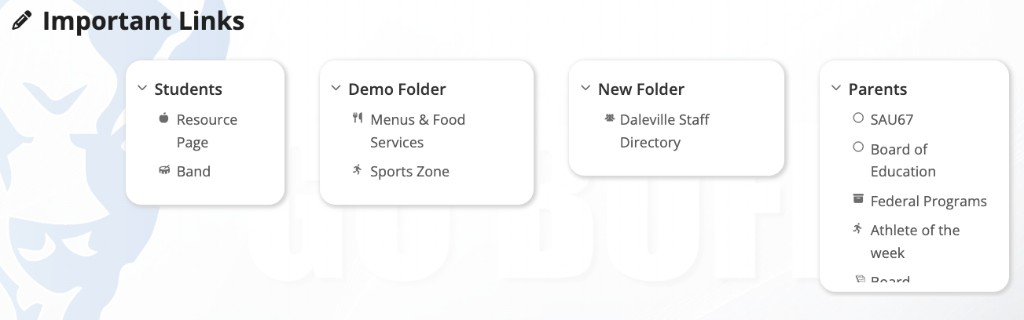
A page contains at most one Links terrace.
Turning the terrace on and off
- Click the + (Add content) button in the admin menu.
- Click Terrace Menu.
- Toggle Links on.
Toggling the terrace off hides it and retains its heading and links. Toggling it on again restores them. The pencil menu on the terrace contains a second control for this, Turn Off Links Terrace.
The pencil menu
| Item | Behavior |
|---|---|
| Add / Edit Links | Opens the in-place editor. Relabels to Close Editor while the editor is open |
| Move Up and Move Down | Move the terrace. Disabled at the top and bottom of the page |
| Turn Off Links Terrace | Hides the terrace |
Heading
The heading is edited in place. Click it, type, and press Enter to save or Escape to cancel. The heading holds 250 characters.
A terrace whose heading has never been set displays the word Links. A heading saved as an empty field is not displayed to visitors. Editors continue to see the Add Title placeholder in its position.
Layout
- Desktop: top-level links and folders sit in a horizontal slider with arrow controls. A single top-level item uses most of the row width. With two or more, each slide is narrower. The list inside a slide scrolls when it is taller than the fixed area; the terrace does not grow with the list.
- Mobile: top-level items stack in a single column. There is no horizontal slider.
A folder expands in place to show its links. Folders open by default.
Adding links and folders
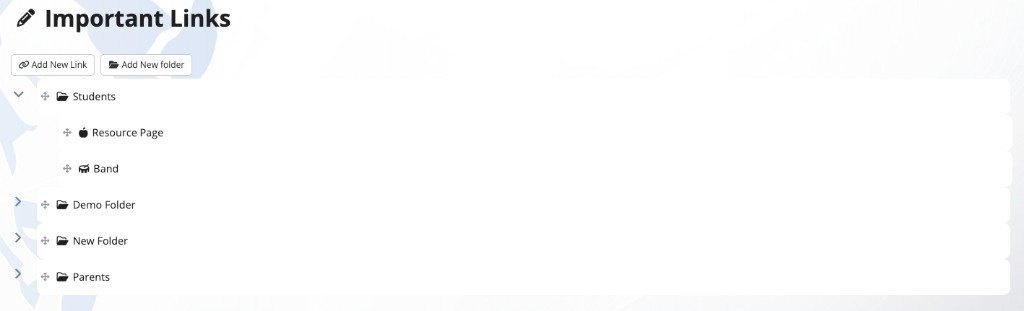
Click the pencil on the terrace and click Add / Edit Links. The toolbar shows Add New Link and Add New folder.
Add New Link
The window asks What type of link do you want to add? and offers two choices.
| Choice | Behavior |
|---|---|
| Link to an external page | Add the link name and website address which opens a new tab. |
| Link to an existing page | Add a link by selecting a previously created page from a dropdown menu. |
An external link
| Field | Behavior |
|---|---|
| Title | Required |
| Url | The full web address. Required |
| Icon | Opens the icon picker |
A link to one of your pages
| Field | Behavior |
|---|---|
| Title | Required |
| Select Page | Searches the pages of your site. Placeholder: Search for a Page |
| Icon | Opens the icon picker |
| Stay in Site | Keeps the visitor on the current site's address while opening the selected page |
Add Link saves a new link. Save saves an edited one.
An external link to a different domain opens in a new tab. A link to a page on the same site opens in the same tab.
Add New folder
Add New folder opens a window with a Title field. Add Folder saves it.
A folder holds links. A folder cannot hold another folder.
Editing and deleting
While Add / Edit Links is open, each row has controls to edit or delete it. Deleting asks Are you sure you want to do that? Deleting a folder also deletes the links inside it.
Click Close Editor in the pencil menu to leave editing.
Constraints
- One Links terrace per page.
- Folders do not nest. Links may sit inside a folder.
- The terrace can be moved with Move Up and Move Down, but not above the Hero Banner or below the Map.
FAQ
- "Can a page have two Links terraces?" No. A page holds one terrace of each type.
- "Why can I not put a folder inside a folder?" The Links terrace allows one level of folders. Put the links in a top-level folder, or use a second page.
- "What does Stay in Site do?" When it is on, the visitor stays on the current site's address while the selected page's content loads. When it is off, the link goes to that page's own address.
- "Are these the same as Shortcuts?" No. Shortcuts are icon links in their own terrace. Links are a separate list with folders and a slider.
Last updated: July 2026.