
Staff directory sync
Each site's staff directory is populated automatically from your district's Google or Microsoft (Office 365) directory. You map which Groups or Organizational Units (OUs) feed each site; SchoolBlocks syncs them every night, and — for Google districts — usually also picks up changes shortly after they happen.
The staff directory
- Every site has a staff directory at its URL followed by /staff — for example,
buffalo.demo.schoolblocks.com/staff. - There is one directory per site (district, each school, and any sub-page that has groups assigned).
- You never add staff one-by-one on the website. To add or remove someone, change who is in the mapped Group or OU in your directory. If a person is missing, they need to be added to the correct Group or OU by whoever manages your directory.
Permission groups: admin access vs. directory cards
The permission groups you map do two different things:
- School Blocks Admins — grants people admin permission to edit the site. It does not put them on the staff directory.
- Staff and Teachers — these are the people who appear as cards in the staff directory. (Staff-group members become staff cards; Teacher-group members become teacher cards. If someone is in both, the teacher designation wins.)
- Students and Guardians — not shown as cards, and rarely managed through Google or Microsoft groups. They're usually brought in from your Student Information System (see SIS roster sync) and used as notification audiences.
Where you map them depends on the page:
- Homepage / top-level school or district site — click your name → Configuration → Authenticate with Google (or Office 365) → Permission Groups. The district row maps Admins and Staff; each school row maps Admins, Staff, Teachers, and Students (for Google, the Students mapping accepts OUs only). A Guardians mapping appears only for SIS-synced organizations. You can map more than one Group or OU to a permission group.
- A sub-page (department, group, team, or section) — click the gear (Page Settings) in the admin menu, then choose Groups & OUs in the Page Settings sidebar. The "Associated Groups & OUs" window lets you assign one Group or OU per user type (Staff, Teachers, Students, Guardians).
Google vs. Microsoft: for Google you can map either Groups or OUs. For Microsoft / Office 365 you map Groups only — we don't read Microsoft OUs.
How the nightly sync works
Every night a script syncs staff information with Google or Office 365, depending on the OAuth provider configured for the district the staff belong to. Step by step:
- Gather members. For every district, school, and sub-page that has groups assigned, it fetches all directory users in that site's mapped Staff and Teacher Groups/OUs (and a Student group, where one is mapped).
- Set up live updates (Google only). For each top-level Google organization (usually the district) it creates a webhook "users watch" so Google can push changes immediately — see Live updates. Office 365 has no webhook.
- Match each directory user to an existing SchoolBlocks account by their OAuth ID (the unique ID Google or Office 365 assigns each user) and their username/email. If both exist, the OAuth-ID match wins.
- Create new people; leave existing people alone. If no match is found, a new account is created. The nightly run does not re-pull details for people who already exist — it only adds new people and removes departed ones.
- Fields pulled on create: first name, last name, email, title, phone, and the OAuth ID/domain.
- Fields on update (applied by the live webhook — see Live updates): first and last name always sync. Title, phone, and email sync only if your district has enabled syncing those fields. Photo syncs only for Office 365 districts (Google profile photos are too small for contact cards).
- Remove departed staff. Anyone who was in the mapped group at the last sync but is no longer in it has their card hidden (see Manage Members).
Practical effect: a new hire appears after the next nightly sync (generally the next day). A departure is removed on the next sync. A detail change (name, title, etc.) to someone already in the directory usually updates shortly after for Google districts (via the live webhook). Office 365 directories don't push live updates, so an existing person's details aren't refreshed automatically.
Live updates (Google districts)
For Google districts, the users-watch webhook means a change in your Google Directory is usually reflected in SchoolBlocks shortly after it happens (the nightly sync is the guaranteed backstop), following the same field rules above. These live updates change only the user's synced fields — they do not change permissions or staff-card placement.
One important exception: if a person is completely deleted from your Google Directory (not merely removed from the staff group, but deleted as a user), all of their staff and student cards are removed.
Office 365 districts don't have live updates. Their nightly sync still adds new people and removes departed ones, but it doesn't refresh the details of people already in the directory.
Manage Members
To see and manage who is synced to a site, open its /staff page and click the gear button (its tooltip reads Manage Members). The table lists everyone synced to that site, with columns:
- Last Name, First Name, Email Address, Username (plus a sync-status indicator in the first column).
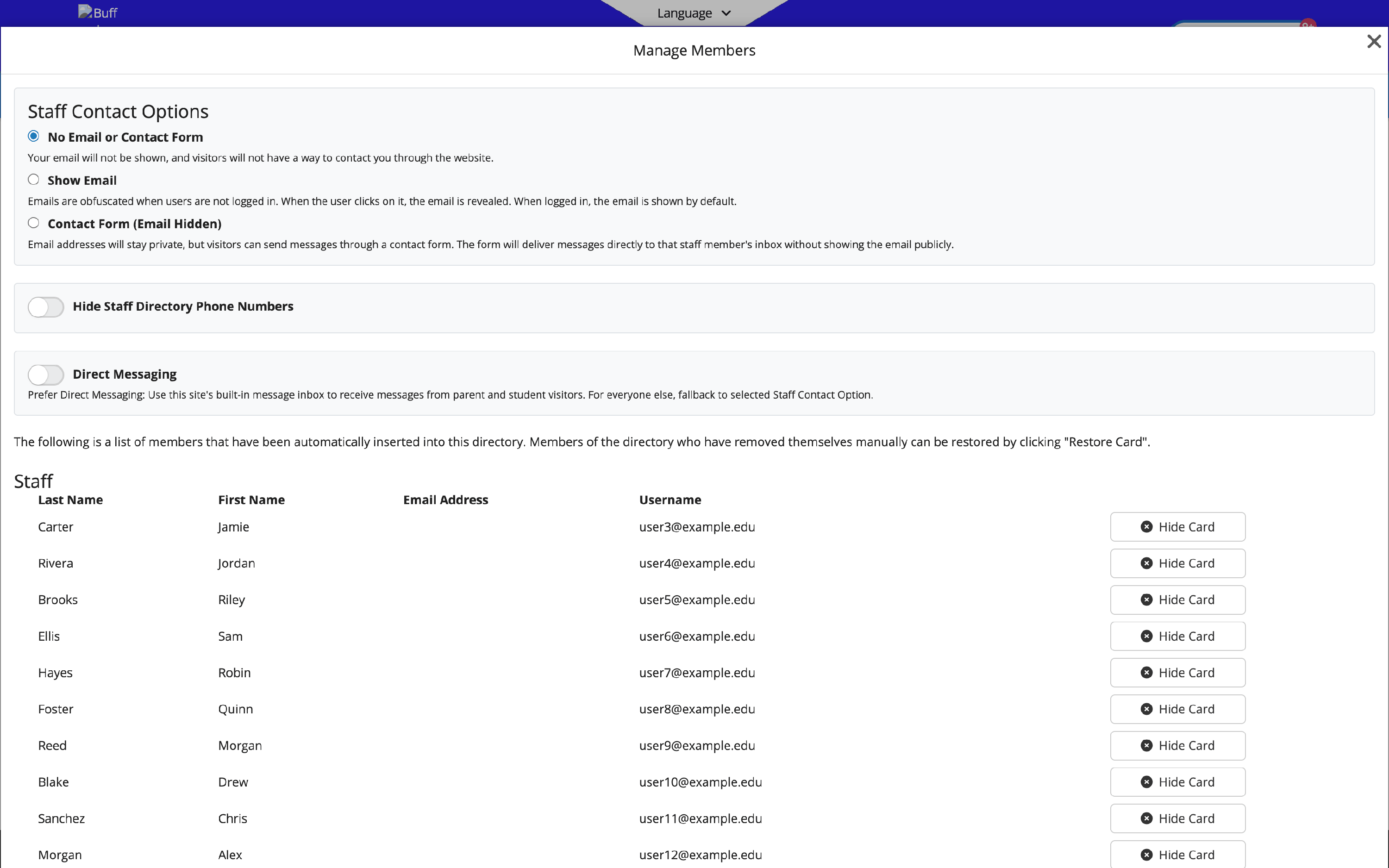
A person whose card is hidden appears with a line through their name. Each row has an action:
- Hide Card — removes the person from the directory display.
- Restore Card — brings a hidden card back. (A synced person who was hidden is also restored automatically the next time they sync back in.) It can take a few minutes to appear; refresh the page.
A staff member is missing
- Check Manage Members first. If the person appears with a line through their name, their card was hidden by hand — click Restore Card.
- If they aren't in the list at all, they aren't in the Group or OU the site syncs with. Find which Group/OU the site uses (Configuration → Authenticate with Google/Office 365 → Permission Groups, the Staff or Teachers dropdown for that site), then have whoever manages your Google or Microsoft directory add the person to it.
- Wait for the sync. Once they're in the correct Group/OU, their card appears after the next nightly sync (or within minutes for a Google district).
FAQ
- How do I add a staff member? Add them to the Group or OU the site syncs with, in your Google or Microsoft directory — not on the website. They appear after the next sync.
- How can I tell whether a person is synced from my directory? Open the site's /staff page → gear → Manage Members. A synced person shows no icon in the first column. A person who was manually added (not from your directory) shows a warning-triangle icon — hover it to see "This user was manually added to this collection." The same icon reading "manually deleted" means a synced person was hidden by hand.
- I updated a teacher's title in Google but the website still shows the old one. For Google districts, title/phone updates apply if your district has field syncing enabled for those fields; first and last name always sync. Office 365 directories don't push live updates, so existing details aren't refreshed automatically. A district admin can turn field syncing on: Configuration → Authenticate with Google (or Office 365) → check the Title / Phone / Email (and, for Office 365, Photo) boxes.
- Why isn't a staff member's photo updating? Photo sync is available only for Office 365 districts; Google profile photos are too small for contact cards.
- A teacher works at two campuses — can they appear at both? Yes. With Google Groups a person can be in more than one group, so they can have a card in multiple directories.
- Can I map a Microsoft OU? No — for Microsoft / Office 365 we read Groups only. Google supports both Groups and OUs.
- Someone left and their card is gone — can I get it back? If sync removed them (they left the Group/OU), they won't appear in Manage Members at all — re-add them to the mapped Group/OU and the card is restored automatically on the next sync. Restore Card only applies to cards someone hid by hand. If they were fully deleted from your directory, their cards were removed and they'd need to be re-added to the directory.
Related articles
- SIS roster sync
- Staff email display options
- User access and roles
- Notifications
Last updated: June 2026.