
Terrace pages
A terrace page is a simplified page layout built from full-width rows of content stacked vertically. Each row is called a terrace. You turn terraces on and off from a menu in the sidebar, and you rearrange most of them to order the page the way you want.
Terrace is one of the two layouts a page can use. The other is Grid with Blocks, the classic layout of tiles arranged on a grid.
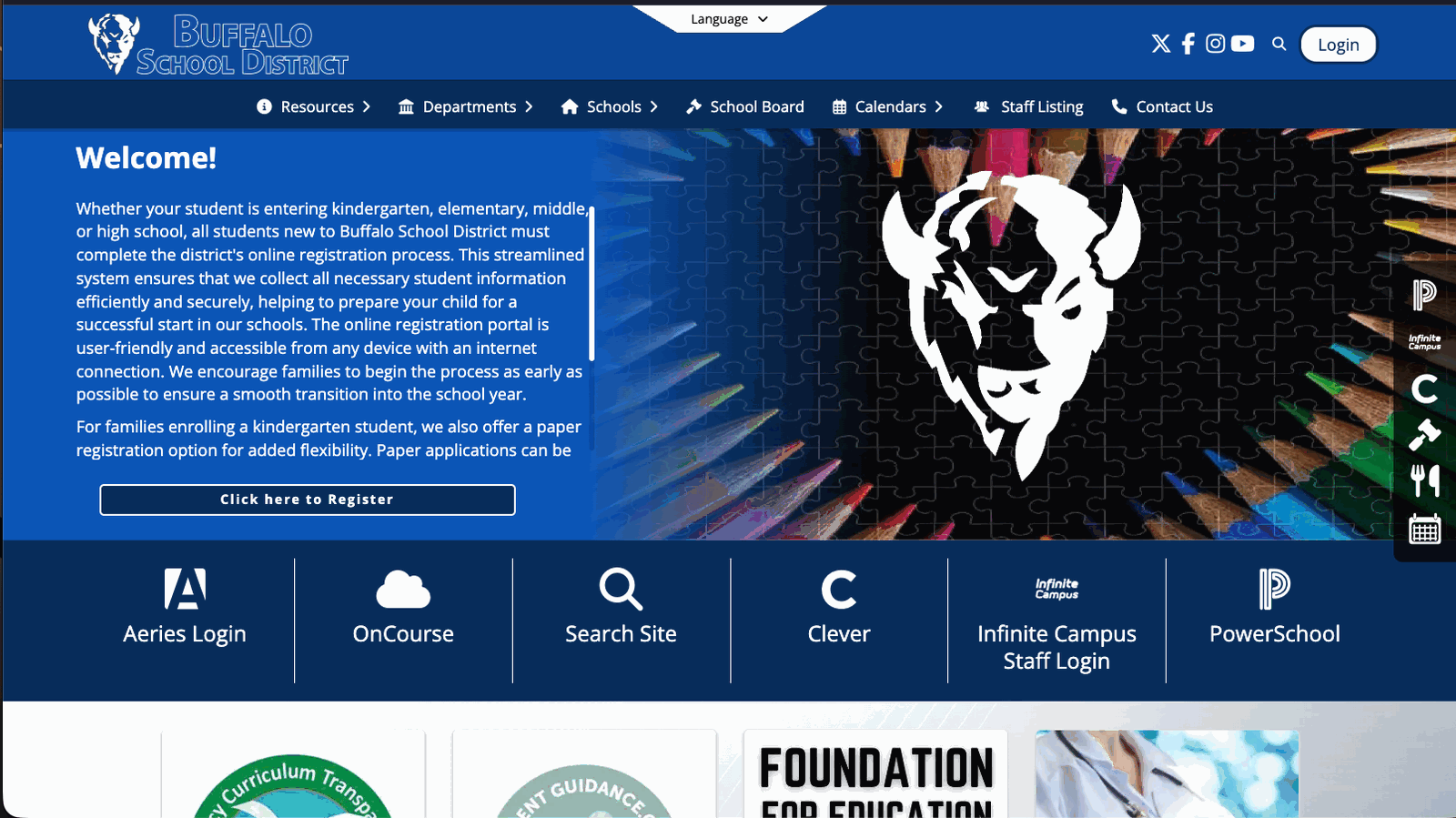
Where terrace pages are available
Terrace is the default layout. A new site and most new pages start as terrace pages.
| Page | Default layout |
|---|---|
| Site home page (district, school, organization) | Terrace |
| Group, department, team, classroom, activity page | Terrace |
| Subpage (section) | Matches its parent page |
A subpage inherits the layout of the page it was added to. A subpage added to a terrace page is a terrace page. A subpage added to a Grid page is a Grid page.
Four reserved views cannot use the terrace layout, because each has its own fixed layout:
/calendar— the calendar view/staff— the staff directory/pages— the pages directory- File pages (shared files)
These views have no Page Type option in Page Settings. Their gear icon opens a different control instead. See Page Settings.
Previewing terrace before you switch
If a page is on Grid with Blocks, you can see how it would look as a terrace page without changing anything.
- Open Page Settings (the gear icon in the admin menu) and click Page Type.
- Next to the Terraced Page label, click Preview.
The preview opens the same page in a new browser tab, rendered as a terrace page. Nothing is saved and the live page does not change. Close the tab to discard it.
The preview link is an ordinary web address. Anyone with the link can open it, so do not share it as if it were the real page.
Switching a page to terrace
Switching layouts and previewing are done from the same place.
- Open Page Settings → Page Type.
- Select Terraced Page.
- A confirmation appears: "You are about to change the page type to Terraced. Your Grid with Blocks content will not be lost."
- Click Yes, switch to Terraced.
Grid blocks are hidden, not deleted. Terraces and Grid blocks are stored separately, so the layout setting only decides which set the page displays. Switch back to Grid with Blocks at any time and every block reappears in its original position.
Page Type requires administrator access. An editor can add and change content on a page but does not see the gear icon.
Layout is set one page at a time, not site-wide. A page is either Grid or terrace; a page cannot be part Grid and part terrace.
Turning terraces on
- On a terrace page, click the + (Add content) button in the admin menu.
- Click Terrace Menu in the sidebar. On a page with no terraces yet, click Add One Now instead — it opens the same menu.
- Toggle on each terrace you want. The terrace is created right away and the page scrolls to it.
- Toggle a terrace off to hide it.
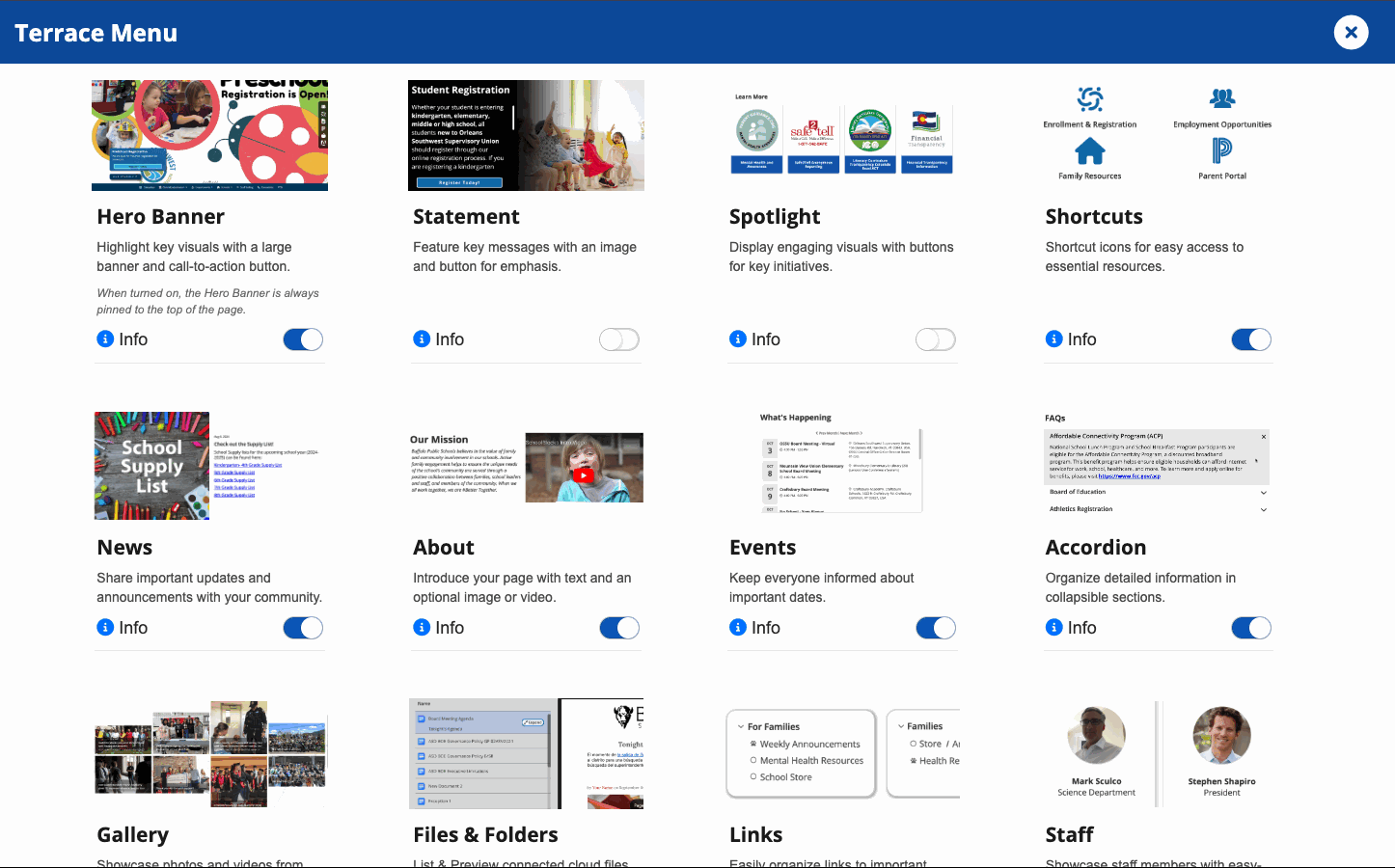
New terraces are added to the bottom of the page. Turning a terrace off hides it and keeps its content, so turning it back on restores what you had.
Each page allows one terrace of each type. To present several groupings of similar content on one page, use the Spotlight or Accordion terrace.
Reordering terraces
- Click the pencil (Edit Terrace) control on the terrace you want to move.
- Choose Move Up or Move Down.
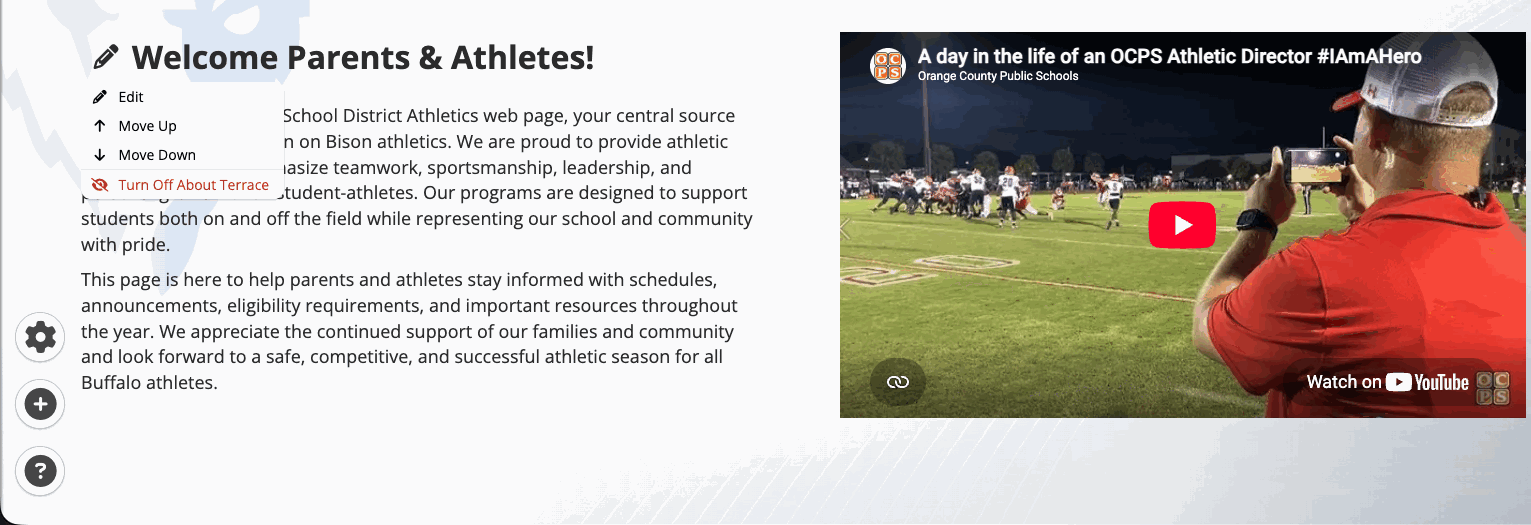
The same menu holds Edit, for changing the content of the terrace, and Turn Off
There is no drag-and-drop for whole terraces. Move Up is unavailable on the first terrace and Move Down on the last.
Two terraces are pinned and have no move options:
- Hero Banner is always at the top of the page.
- Map is always at the bottom of the page.
Ordering is stored per page. Reordering one page does not affect any other page.
The terraces
| Terrace | What it shows | Detail article |
|---|---|---|
| Hero Banner | The full-width banner at the top of the page: one or more rotating images or a video, the site title, and an optional call-to-action button. | Hero Banner terrace |
| Statement | A full-width banner of text over a background image, with a light, dark, or theme color scheme and an optional button. | Statement terrace |
| Spotlight | Up to eight swipeable tiles, each with an image, a title, and a message. | Spotlight terrace |
| Shortcuts | A row of icon links, each with a title beneath it. | Shortcuts terrace |
| News | Your news posts, newest first, with a district or school toggle on school pages and a Load More News button. | News terrace |
| About | A two-column row with text on one side and an image or video on the other. | About terrace |
| Events | Upcoming events from your event posts and your subscribed calendars. | Events terrace |
| Accordion | A searchable list of collapsible items, for questions and answers or any long reference list. | Accordion terrace |
| Gallery | A tiled grid of your photos and videos with a View More link. | Gallery terrace |
| Files & Folders | Your connected cloud files and folders in a sortable, expandable list with an inline preview. | Files & Folders terrace |
| Links | Groups of quick links in a horizontal slider. | Links terrace |
| Staff | A scrolling row of staff profile cards from your staff directory, with search. | Staff terrace |
| HTML | Your own HTML or embed code, for content from another service. | HTML terrace |
| Map | A map of your organization's locations, with details for the location a visitor clicks. | Map terrace |
| Spirit Gear | Products from your school store, with a Visit Store link to the full store. | Spirit Gear terrace |
Some terraces are close counterparts of a Grid block of the same name — Links, Staff, HTML, and Spirit Gear present the same content in a full-width row.
Every terrace except the Hero Banner has an editable heading. The default heading is not always the menu label: the Map terrace is headed FIND US, and the News terrace is headed with your organization name followed by News.
Subpages on a terrace page
When a terrace page has subpages, they appear as a horizontal row of links directly under the page title. This row appears on section, group, department, team, and classroom pages. It does not appear on a site home page.
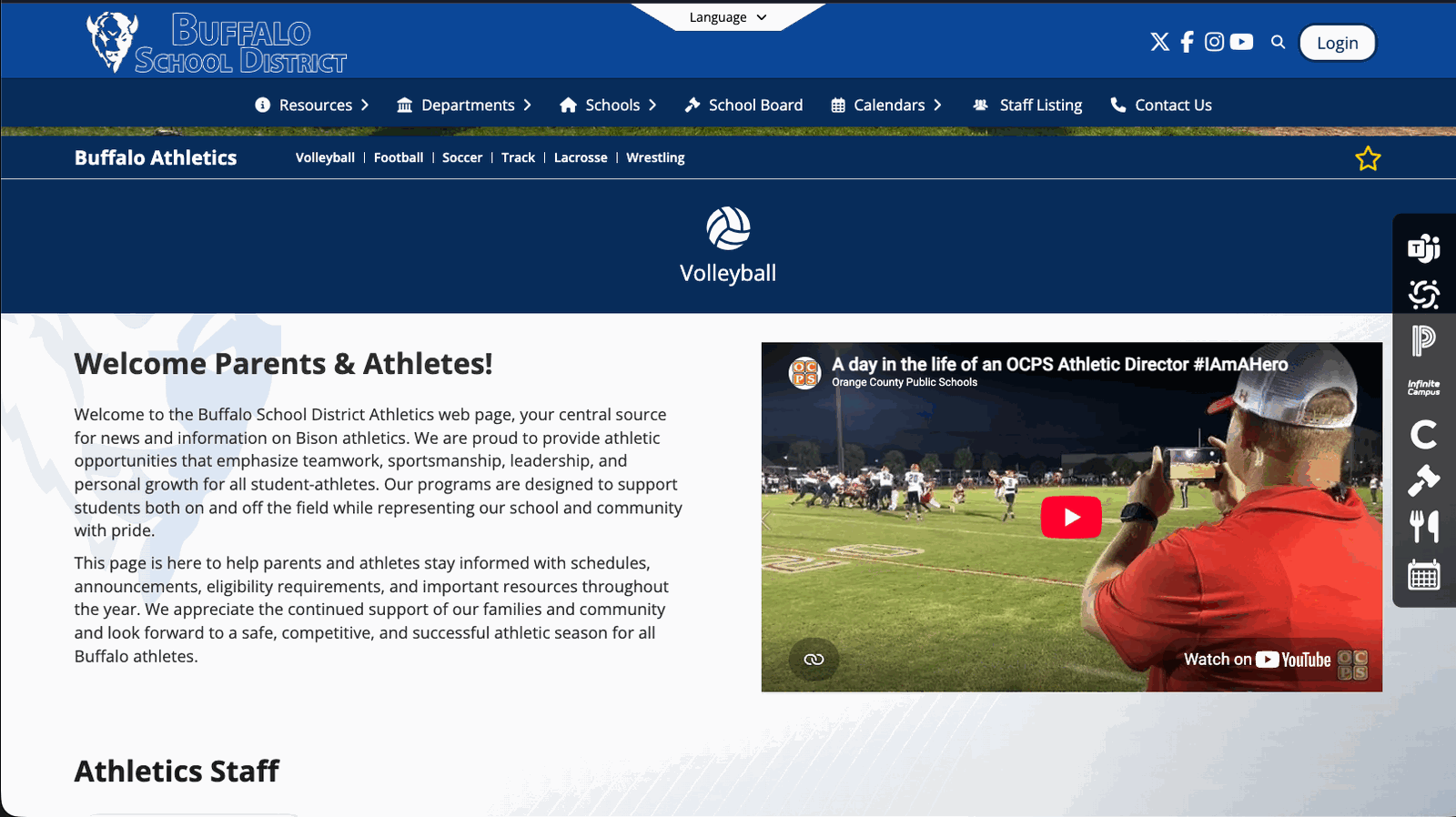
- The row lists the published subpages of the current page, one level deep.
- With no subpages yet, an editor sees an Add Subpage button.
- With subpages present, an editor sees a + button to add another. With two or more, an additional arrows button turns on drag-to-reorder.
- Subpages can have subpages of their own.
Subpages do not become terraces. They stay in the navigation row, and the body of the page is still made of the terraces you turned on.
On the terrace home page there is no subpage row. Home page subpages are reached from the site navigation and the pages directory.
Notes and limitations
- Grid blocks are hidden, not deleted, when a page switches to terrace. Switch back to Grid to see them.
- The Hero Banner is edited from its own control, labelled Edit Hero Image rather than Edit Terrace. It opens a dedicated editor where you choose the images in the rotation.
- The Hero Banner renders in the page header above the body, so it is not part of the main scroll with the other terraces.
- Turning on Spirit Gear creates your store the first time. Until the store is ready, editors see a "Your store is being created!" message and visitors see nothing.
- The Micro-Site option and the layout history (Flux Capacitor) are Grid features and are not available on terrace pages.
FAQ
- "Why does the Statement terrace image appear cropped or cut off?" The Statement background image is displayed full-width behind the text, and the area shown changes with each visitor's screen size and the length of the text, so no single crop looks right on every device. Design the image up front: in a tool such as Canva, make it a wide 4:1 horizontal ratio (for example 600px x 200px) with the important content centered, then upload it. The editor reminds you of the 4:1 ratio when you add the image.
- "What is the HTML terrace accessibility check?" When you save an HTML terrace, the editor runs an accessibility (ADA) check on your content and flags issues before publishing. Resolve the flagged items, then Evaluate ADA and Save Changes to finish, or choose Ignore Errors and Save Anyway.
- "Why does a terrace display raw HTML or code instead of formatted text?" A small number of terraces created before January 21, 2026 can still display raw markup because of a display issue that has since been resolved. Re-saving the terrace usually clears it. If it persists, contact support to have the affected terrace reset. There is no self-serve option for this.
- "Does switching layouts lose my content?" No. Grid blocks and terraces are stored separately, and switching only changes which set the page displays. Nothing is deleted, so you can switch back and forth.
- "Can I add a second News terrace?" No. Each page allows one terrace of each type. Use a Spotlight or Accordion terrace to present additional groupings of content.
Last updated: July 2026.